
Administering your instance
The Settings page and its tabs, the permissions that open them, and the per-user Preferences page.
You administer your instance from inside the application, on the "Settings" page. This page describes what each tab lets you configure, who can open it, and points to the detailed pages of this section.
The "Settings" page
The "Settings" link sits at the bottom of the sidebar. The page shows four tabs, each with a subtitle.
| Tab | Subtitle | Content |
|---|---|---|
| "General" | Scanning, retention | Scheduled scans, finding retention, system status, compliance frameworks |
| "Integrations" | Cloud, connectors | Cloud accounts, folders, Kubernetes clusters, ticketing, notification channels, Git repositories |
| "Notifications" | Alert rules | The rules that decide which findings go to which channel |
| "Users & Access" | Roles & permissions | Users, roles, single sign-on, audit log |
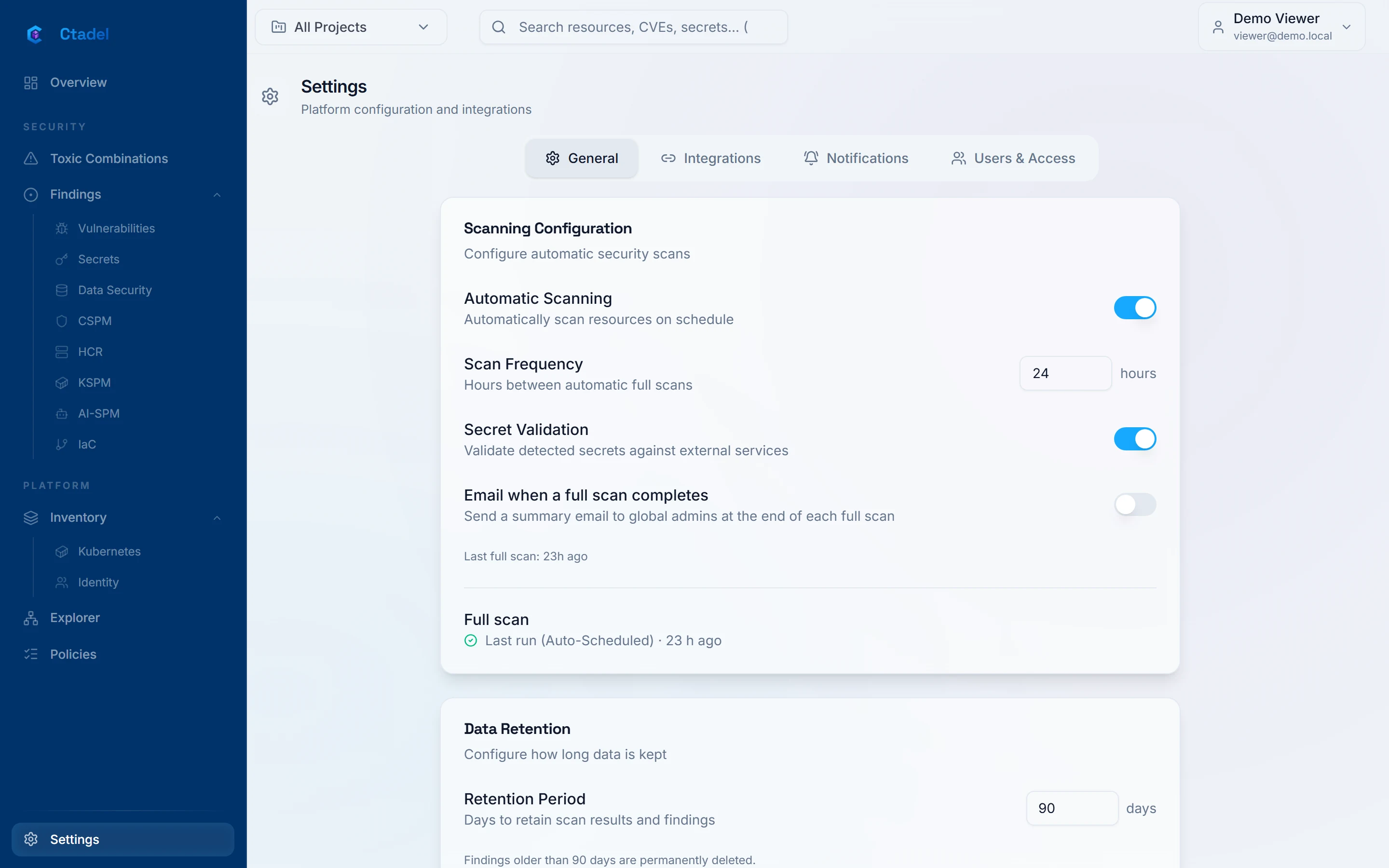
"General"
The tab holds four cards. The "Save Changes" button applies to the first two; the other two save each change at once.
- "Scanning Configuration": the "Automatic Scanning" switch, the "Scan Frequency" field (hours between two full scans), the "Secret Validation" switch (detected secrets are checked against external services), the "Email when a full scan completes" switch, the date of the last run and the "Scan now" button. Details in Scheduling and retention.
- "Data Retention": the "Retention Period" field, in days. Same page.
- "System status": the state of the instance's internal services and the last heartbeat of each of its components, refreshed every 30 seconds. A component turns "Late" after 90 seconds of silence and "Down" after 5 minutes; the latter alerts the Ctadel operations team, not your administrators. Details in Notifications.
- "Compliance Frameworks": one switch per framework to turn its tracking on or off. The "Compliance" page that uses this setting is under internal validation and is not available to customers.
"Integrations"
Six sub-tabs, shown as pills.
| Sub-tab | What it manages | Page |
|---|---|---|
| "Cloud Providers" | The connected cloud accounts and the catalogue of clouds to add; for AWS, OUTSCALE and Google Cloud, the "Disk scanner network (optional)" section | Connect a cloud, Scanner settings |
| "Folders" | The folder tree that groups cloud accounts and Git repositories | Projects and folders |
| "Kubernetes" | Clusters discovered in cloud accounts or connected with a kubeconfig | Connect Kubernetes |
| "Ticketing" | Jira, GitHub, GitLab, Linear, ServiceNow and YouTrack | Ticketing |
| "Notifications" | The eight channels: webhook, Slack, Discord, Google Chat, Microsoft Teams, PagerDuty, Mattermost, Tchap / Matrix; there is no email channel | Notifications |
| "Git (IaC)" | The GitHub organizations and GitLab groups being scanned | Connect a Git repository |
"Notifications"
The "Alert Rules" card: each rule links a channel to a minimum severity, to finding types, and optionally to specific rules and projects. With no channel configured, the card first sends you to "Integrations" then "Notifications". Details in Notifications.
"Users & Access"
| Sub-tab | Content | Page |
|---|---|---|
| "Users" | "Team Members" and "Pending Invitations" | Users and roles |
| "Roles" | The roles, their permissions and their scope (projects or folders) | Users and roles |
| "SSO" | "Require SSO sign-in" and "Identity Providers" | Single sign-on |
| "Audit" | "Audit log" | Audit log |
Who can open it
The "Settings" link is visible to every signed-in user, but each tab loads its data behind a permission. A user who opens a tab without the matching read permission is sent to the /unauthorized page; the "SSO" tab instead shows the message "Managing single sign-on requires the manage:sso permission."
| Tab or sub-tab | Read | Change |
|---|---|---|
| "General" | read:settings | update:settings |
| "Integrations", every sub-tab | read:settings | update:settings |
| "Notifications" | read:settings | update:settings |
| "Users" | read:users | update:users, delete:users |
| "Roles" | read:roles | create:roles, update:roles, delete:roles |
| "SSO" | manage:sso | manage:sso |
| "Audit" | read:users | read-only |
The effective permission depends on the active role and the active project: a user holding several roles picks the one in use from the user menu, entry "Switch Role". Roles and their permissions are described in Users and roles.
The "Preferences" page
From the user menu, top right, the "Preferences" entry opens a personal page that requires no permission.
- "Profile": the account "Name" and "Email", read-only.
- "Email verification": the state "Email address verified" or "Email address not verified", and the "Send verification link" button until the address is confirmed.
- "Notifications": a link to the "Settings" page. Notification channels and rules belong to the instance, not to the user.
The same user menu holds the "Theme" choice ("Dark", "Light", "System"), the "Language" choice ("English" or "Français", remembered in a cookie) and, for a user holding several roles, "Switch Role".
The pages of this section
- Users and roles: invitation, roles, scopes, MFA, password, session lifetime.
- Single sign-on: SAML and OIDC.
- Notifications: channels, rules, event types.
- Ticketing: creating a ticket from a finding.
- Policies: the rule catalogue and its activation.
- Scheduling and retention: scheduled scans and retention periods.
- Audit log: what is logged and where to read it.
- Scanner settings: the disk scanner network per account.
Pages in this section
- Users and roles
Inviting a user, defining roles and their scope, and understanding the sign-in code, the password policy and the session lifetime.
- Single sign-on
Connecting your identity provider with SAML or OIDC, mapping its groups to Ctadel roles and creating accounts at first sign-in.
- Notifications
Channels, alert rules, event types, deduplication, and what goes to the Ctadel operator rather than to your channels.
- Ticketing
Connecting Jira, GitHub, GitLab, Linear, ServiceNow or YouTrack, creating a ticket from a finding, and what Ctadel sends to your tool.
- Policies
The rule catalogue per module, enabling a rule, rules shipped disabled, rule details, custom rules and suppression rules.
- Scheduling and retention
Scheduled and on-demand scans, how long closed findings are kept, how long the audit log is kept, and how the dashboard history is built.
- Audit log
What the instance records, where to read it, how long it is kept, and what is missing from it.
- Scanner settings
Where the short-lived machine that reads an account's disks boots, how the instance reaches it, and what is created and then deleted in your account.